Gradients, strokes, and effects
Add depth to your Lottie: linear and radial gradients, dashed strokes, per-corner radius, drop shadows, and gaussian blur.
- #gradients
- #strokes
- #effects
- #styling
Once your animation moves well, styling makes it shine. Everything here lives in the Properties panel when a layer is selected.
Gradients
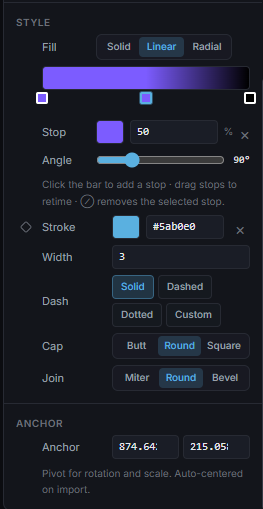
In the Style section, switch the fill from Solid to Linear or Radial. You get a gradient bar with draggable stops:
- Click the bar to add a stop.
- Drag a stop to retime it; click to select and recolor it.
- Linear gives an angle slider; Radial gives a radius slider.
Gradients export as native Lottie gradient fills, so they render everywhere.
Strokes
For any stroked layer, the Style section exposes:
- Width
- Dash. Solid / Dashed / Dotted, or a custom pattern.
- Cap, butt / round / square.
- Join, miter / round / bevel.
Corner radius
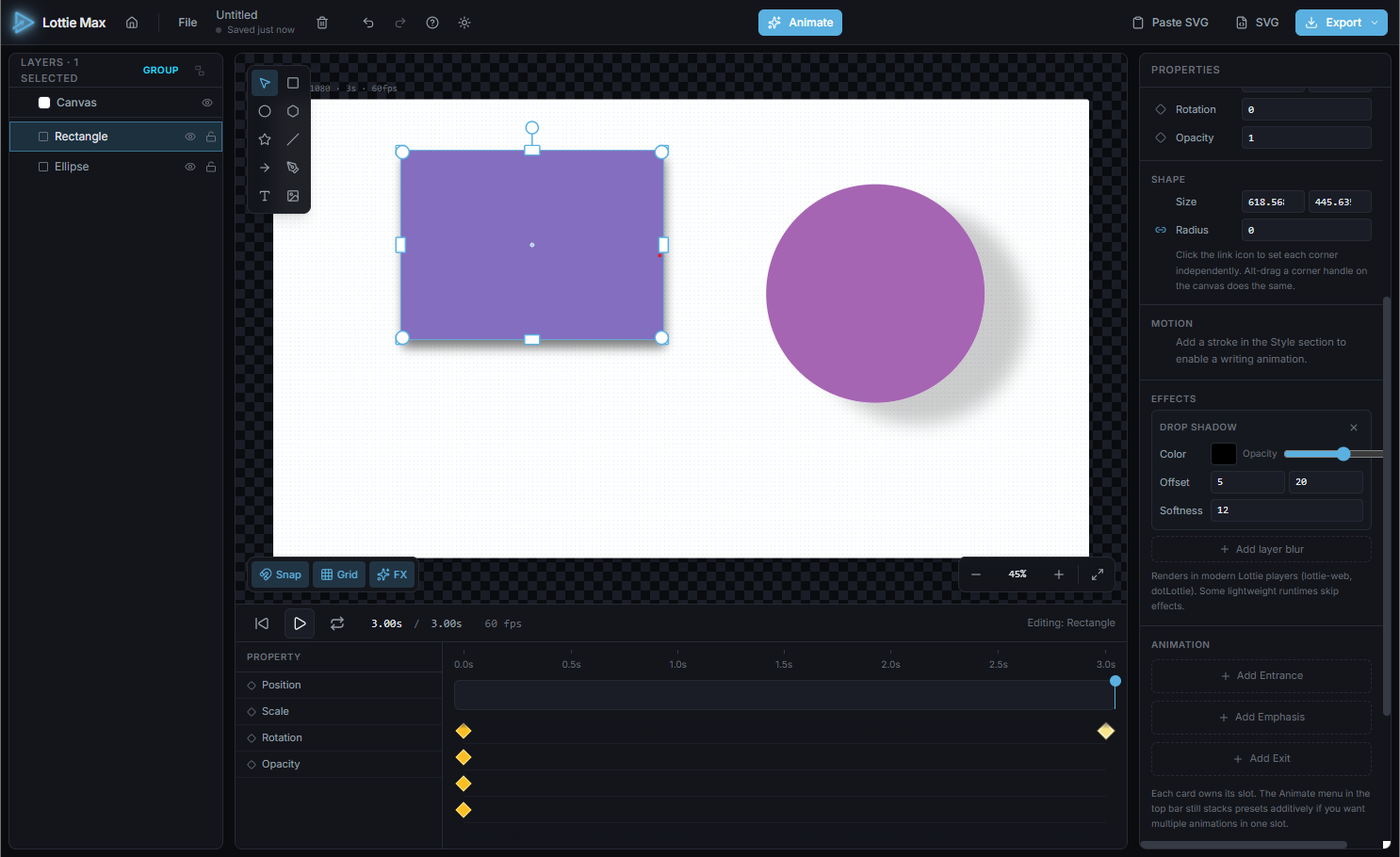
Rectangles (and images) support corner radius. Uniform, or per-corner with the link toggle. You can also drag the on-canvas corner handles; Alt-drag breaks the link to round one corner independently.
Effects: shadow & blur
The Effects section adds:
- Drop shadow: color, opacity, X/Y offset, softness.
- Layer blur, a single gaussian radius.
Both preview live and export as standard Lottie effects (drop shadow + gaussian blur), which modern players like lottie-web and dotLottie render. Very lightweight runtimes may skip effects, the studio notes this where it matters.
What’s next
You’re ready to ship, head to exporting your Lottie.
Try it in the studio
No account, nothing to install. It runs in your browser.