
Create a signature write-on animation
Make a signature, logo stroke, or hand-drawn line appear to draw itself. The write-on effect animates a stroke from start to finish.
- #write-on
- #signature
- #stroke
- #draw
The “write-on” (or draw-on) effect makes a stroke appear to draw itself, perfect for signatures, hand-lettered logos, underlines, and scribble reveals. Lottie Max does it in one click.
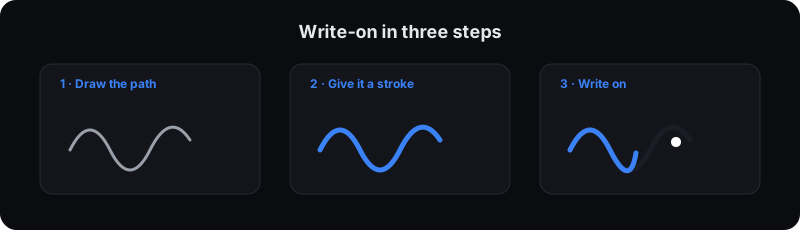
1. Draw the path
Use the Pen tool to trace your signature or line. Each click/drag adds to the path. (You can also paste a signature SVG from any design tool, or use the Line tool for a simple underline.)
2. Make sure it has a stroke
The write-on effect animates a stroke, so the layer needs one. The Pen and Line tools add a stroke automatically. For other shapes, set a stroke color in the Properties panel’s Style section and a stroke width.
3. Click “Write on”
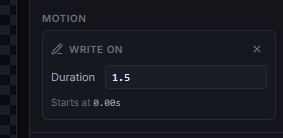
With the path selected, find the Motion section in the Properties panel and click Write on. Lottie Max animates the stroke being drawn from start to finish and starts playback so you see it immediately.
- Adjust Duration to control the writing speed.
- Remove reverts it to a fully-drawn stroke.
How it works (for the curious)
Write-on uses trim paths, it animates the visible portion of the stroke
from 0% to 100%. On export, Lottie Max emits a real Lottie tm (trim) shape, so
it plays back identically in any Lottie player.
Tips
- Match the stroke cap to the look, round caps feel like a marker; butt caps feel technical. Set it in Style → Cap.
- Chain it: add a Fade Out exit after the write-on for a signature that draws on, holds, then gracefully disappears.
- Loop it by keeping the scene short and enabling loop in the player.
What’s next
Polish the look with gradients, strokes, and effects, then export your Lottie.
Try it in the studio
No account, nothing to install. It runs in your browser.