
Animate with presets: entrance, emphasis, exit, loop
One-click motion for any layer. Learn the In / Emphasis / Out slots and the loop presets, and how to retime them on the timeline.
- #animation
- #presets
- #motion
Presets are the fastest way to get professional motion. Select a layer, pick a preset, and Lottie Max generates the keyframes for you, including spring physics where it makes the motion feel alive.
The four kinds of motion
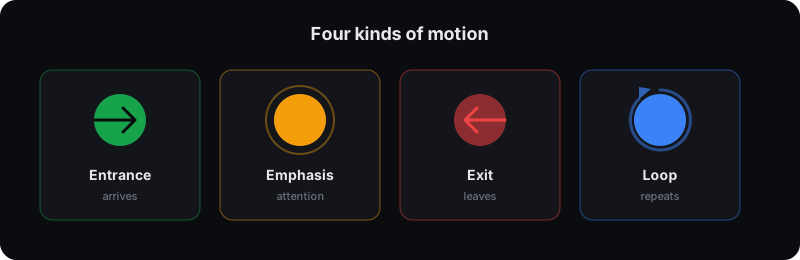
- Entrance (In): how a layer arrives: Fade In, Pop In, Drop In, Slam In (slides in and bounces off an invisible wall), Magnetic, Rotate In, Draw On.
- Emphasis: attention while it’s on screen: Pulse, Heartbeat, Jello, Tada, Shake, Wiggle, Spin.
- Exit (Out): how it leaves: Fade Out, Pop Out, Scale Out, Drop Out, Rotate Out, the Slide-outs, Draw Off.
- Loop: continuous motion: Float, Hover, Levitate, Breathe, Swing, Bounce, Spin Loop.
Apply one
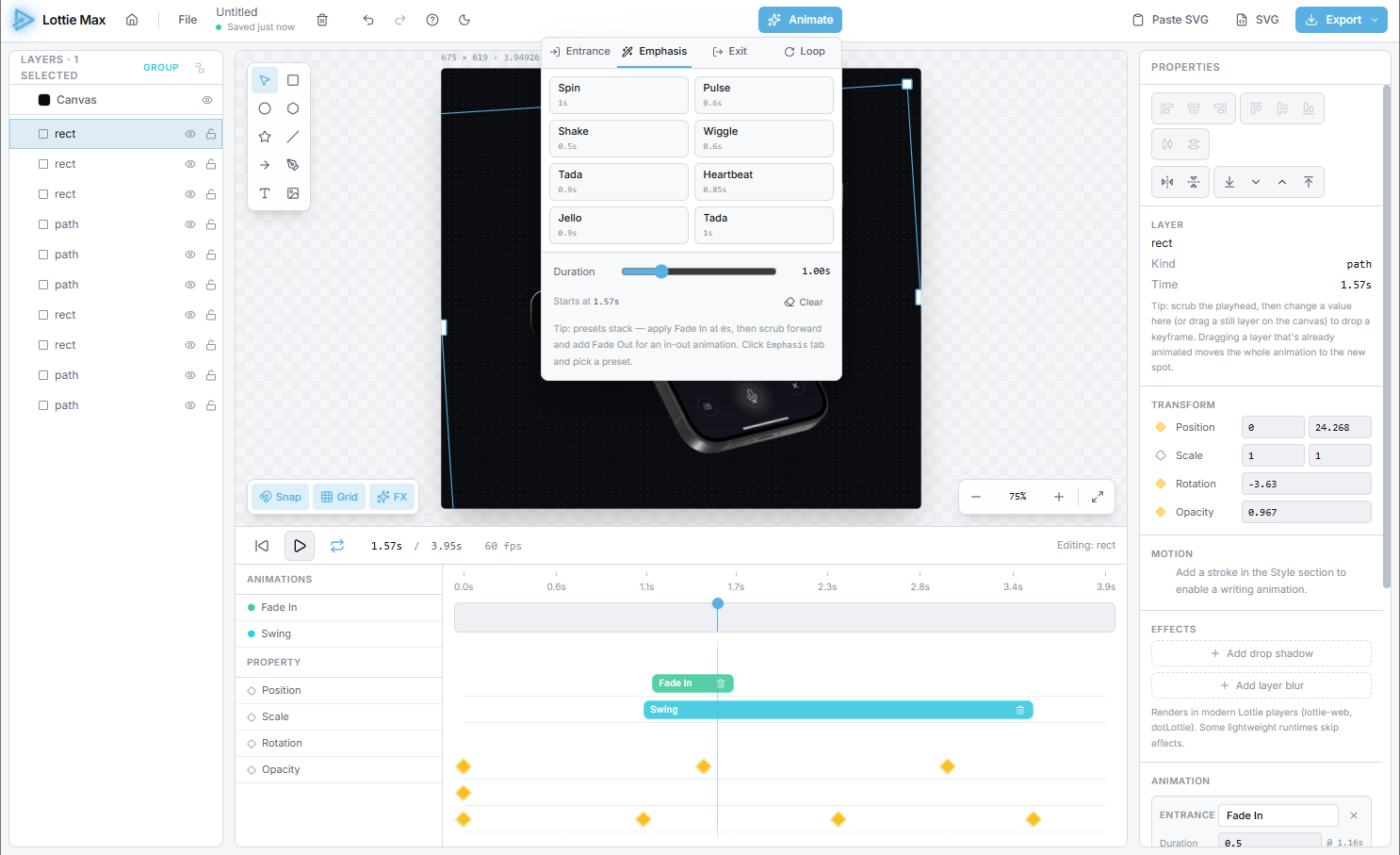
Select a layer. In the Properties panel’s Animation section, each slot shows + Add. Click it, pick a preset, and press Play to preview.
Swap presets by clicking the chip; remove with the ×. The duration field on each card retimes the animation.
Retime on the timeline
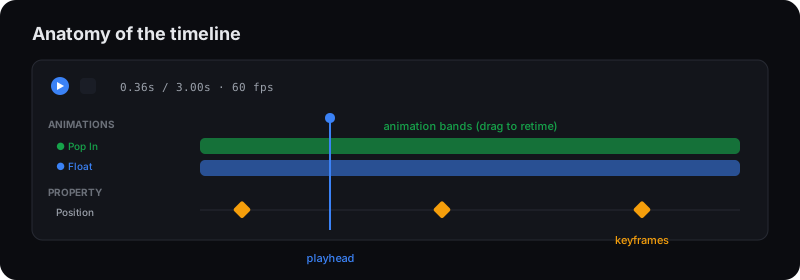
Applied animations show as colored bands in the timeline (green = entrance, amber = emphasis, red = exit). Drag a band’s middle to move it in time; drag either edge to change its duration. It’s the visual way to choreograph timing.
Stagger multiple layers
Select several layers, open the Animate menu (top bar), pick a preset, and set a stagger. Each layer starts a beat after the previous one, for a clean cascading reveal.
What’s next
For total control, drop into keyframes and easing, or make a handwritten signature write-on.
Try it in the studio
No account, nothing to install. It runs in your browser.