
Import SVG into Lottie Max from Figma, Illustrator, and more
Bring artwork from any design tool into Lottie Max as editable layers. Copy-paste from Figma, Illustrator, Sketch, Inkscape, or drop in any .svg file.
- #svg
- #import
- #figma
- #illustrator
- #workflow
The fastest way to start in Lottie Max is to bring artwork you’ve already designed. Anything that can produce an SVG works. Lottie Max parses it and recreates each element as an editable layer, with groups, gradients, clip-paths, and fills intact.
Here’s how to get SVG out of the most common tools, then into the studio.
From Figma
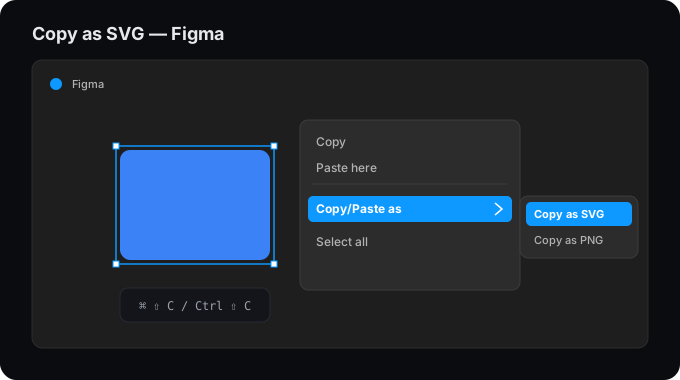
- Select the frame, group, or layer.
- Press Cmd/Ctrl + Shift + C (Copy as → SVG), or right-click → Copy/Paste as → Copy as SVG.
- In Lottie Max, press Cmd/Ctrl + V on the canvas.
Figma layer names come across, so your Layers panel stays readable.
From Adobe Illustrator
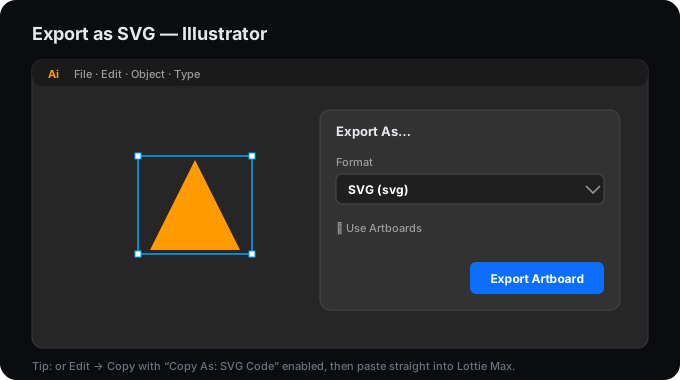
You have two good options:
- Copy-paste: select your artwork, Edit → Copy, then paste into Lottie Max. (Make sure SVG Code is enabled under Preferences → File Handling & Clipboard → Copy As: SVG Code.)
- Export: File → Export → Export As → SVG, then drag the saved
.svgonto the Lottie Max canvas. Use Presentation Attributes styling and outline your text for the cleanest result.
From Sketch
Select the layer or artboard, then right-click → Copy → Copy SVG Code (or File → Export as SVG). Paste or drop it into Lottie Max.
From any other tool
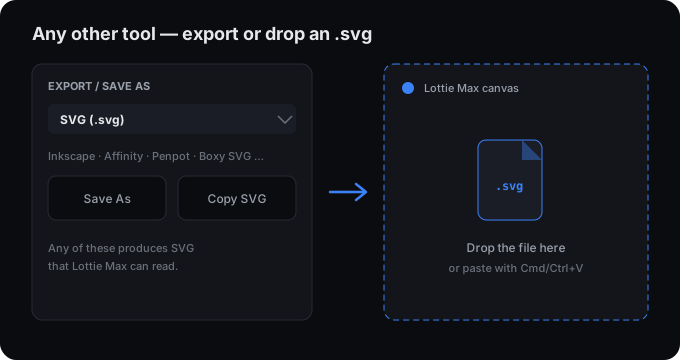
Inkscape, Affinity Designer, Penpot, Boxy SVG, even hand-written SVG. If it
saves or copies an .svg, Lottie Max can open it. Either:
- Paste the SVG markup with Cmd/Ctrl + V, or
- Drag the
.svgfile straight onto the canvas, or - Use Open SVG file on the home page.
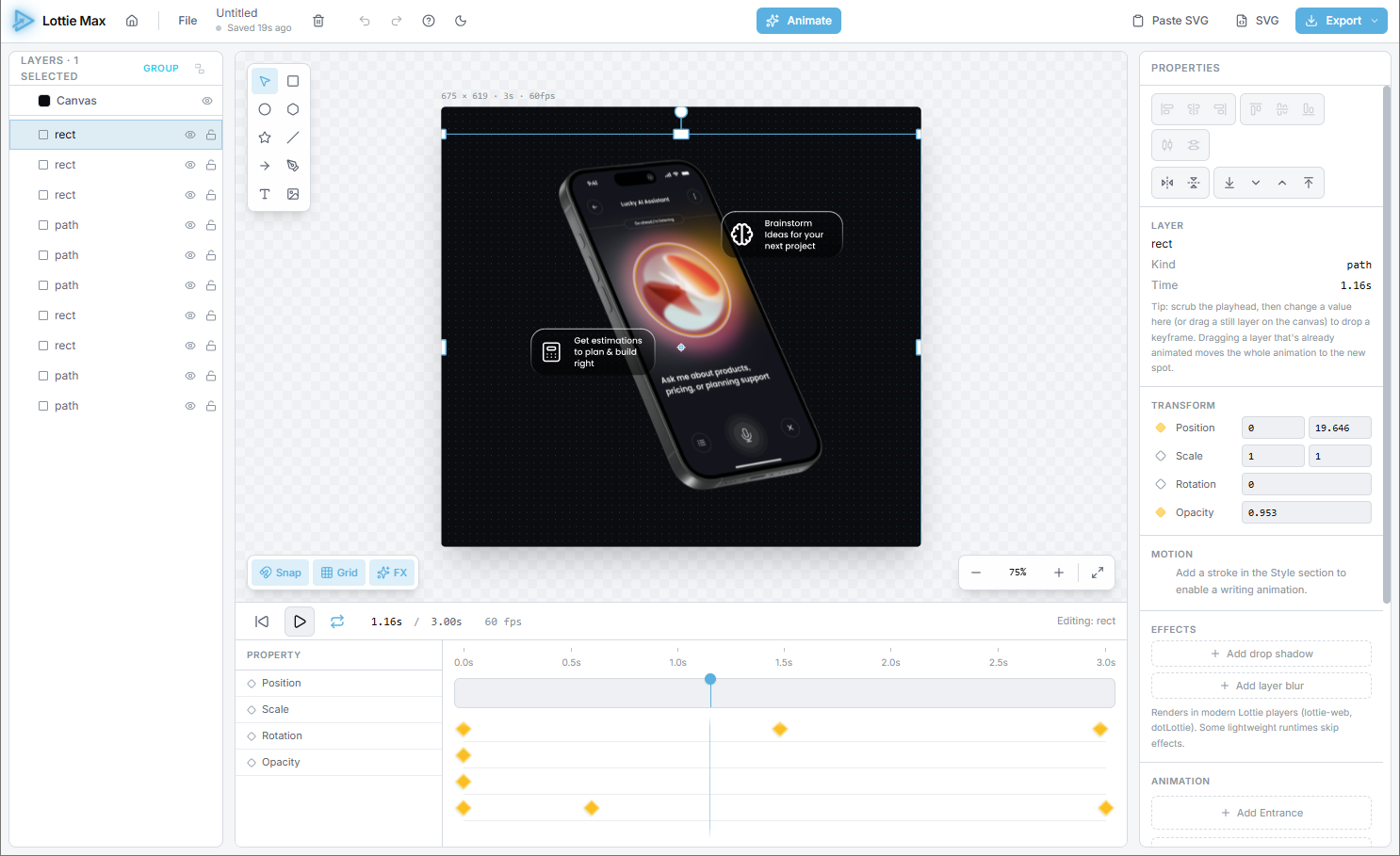
What carries over
- Shapes become paths you can restyle and animate.
- Groups are preserved as nested layers.
- Gradients, clip-paths, and fills come across.
- Text comes in as editable text layers.
Tips for clean imports
- Flatten what you don’t need to animate. Fewer layers = a lighter export.
- Name your layers in the source tool, names travel with the import.
- Outline text if you want pixel-perfect glyph shapes; keep it as live text if you’ll edit the copy later in Lottie Max.
- Convert strokes to outlines in the source tool when you need exact stroke geometry preserved.
What’s next
Group related layers (select + Cmd/Ctrl+G), then animate them with presets. Multi-layer selections can be staggered so elements animate in sequence.
Step-by-step for your tool
Detailed SVG-extraction guides for the most common design tools.
Try it in the studio
No account, nothing to install. It runs in your browser.