
SVG → Lottie
How to turn Affinity Designer artwork into a Lottie
Affinity Designer exports standards-friendly SVG that imports cleanly into Lottie Max.
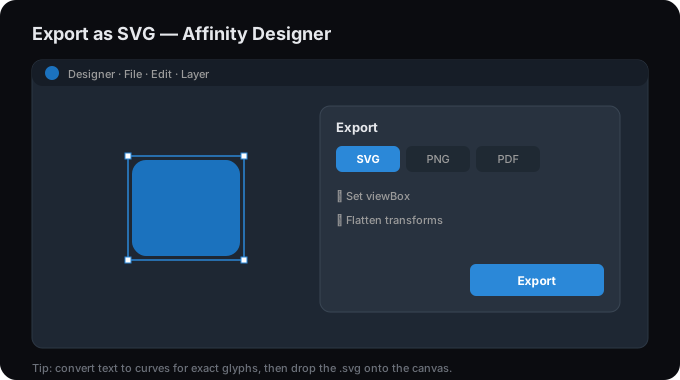
Get the SVG out of Affinity Designer
- 1 Select your artwork (or the artboard).
- 2 File → Export → SVG (use “SVG (for web)”, and enable Set viewBox / Flatten transforms).
- 3 Then in Lottie Max, press Cmd/Ctrl + V on the canvas, or drag the .svg file straight onto the canvas, or use Open SVG file on the home page.
What carries over
- ✓ Shapes become editable paths you can restyle and animate.
- ✓ Groups are preserved as nested layers.
- ✓ Gradients, clip-paths, and fills come across.
- ✓ Text comes in as editable text layers.
Tips for a clean import
- → Enable “Set viewBox” so the artwork scales correctly in the studio.
- → Convert text to curves for exact glyphs.
- → Flatten transforms to avoid nested coordinate surprises.
Now animate it
Once your art is in, add motion with one-click presets or keyframes.
FAQ
- Is exporting SVG from Affinity Designer to Lottie free?
- Yes. Lottie Max is free and runs entirely in your browser. No account, no sign-up.
- Does my Affinity Designer artwork get uploaded?
- No. Importing, animating, and exporting all happen client-side. Your artwork never leaves your device.
- What carries over from Affinity Designer?
- Shapes become editable paths; groups stay nested; gradients, clip-paths, and fills come across; and text stays editable.
- What can I export afterwards?
- Lottie .json and .lottie (dotLottie, ~3× smaller), plus a copy-paste HTML embed snippet.