
SVG → Lottie
How to turn Adobe Illustrator artwork into a Lottie
Illustrator gives you two clean routes into Lottie Max: copy SVG code, or export an .svg file and drop it on the canvas.
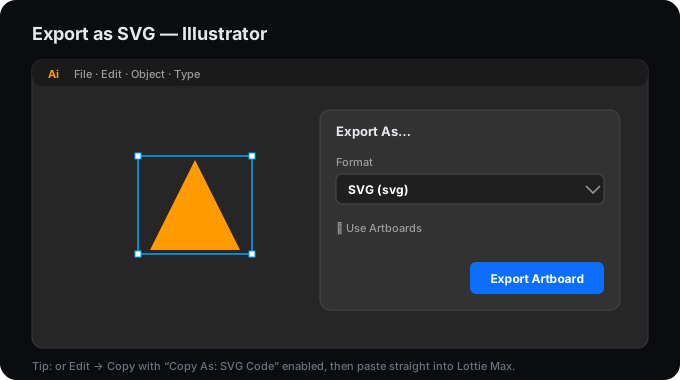
Get the SVG out of Adobe Illustrator
- 1 Copy-paste: enable Preferences → File Handling & Clipboard → Copy As: SVG Code, then select your artwork and Edit → Copy.
- 2 Or export: File → Export → Export As → SVG, using Presentation Attributes styling.
- 3 Then in Lottie Max, press Cmd/Ctrl + V on the canvas, or drag the .svg file straight onto the canvas, or use Open SVG file on the home page.
What carries over
- ✓ Shapes become editable paths you can restyle and animate.
- ✓ Groups are preserved as nested layers.
- ✓ Gradients, clip-paths, and fills come across.
- ✓ Text comes in as editable text layers.
Tips for a clean import
- → Outline your text for the cleanest, font-independent result.
- → Use Presentation Attributes (not inline CSS) so styles map predictably.
- → Expand strokes you need to keep exactly (Object → Expand).
Now animate it
Once your art is in, add motion with one-click presets or keyframes.
FAQ
- Is exporting SVG from Adobe Illustrator to Lottie free?
- Yes. Lottie Max is free and runs entirely in your browser. No account, no sign-up.
- Does my Adobe Illustrator artwork get uploaded?
- No. Importing, animating, and exporting all happen client-side. Your artwork never leaves your device.
- What carries over from Adobe Illustrator?
- Shapes become editable paths; groups stay nested; gradients, clip-paths, and fills come across; and text stays editable.
- What can I export afterwards?
- Lottie .json and .lottie (dotLottie, ~3× smaller), plus a copy-paste HTML embed snippet.