
How to animate a logo as a Lottie
Turn a static logo into an animated Lottie: import the SVG, reveal it with a write-on or pop, add a subtle loop, and export. Free, in your browser.
- #logo
- #animation
- #use-case
- #branding
An animated logo is one of the highest-impact, lowest-effort wins in motion design. Here’s a clean, repeatable recipe in Lottie Max.
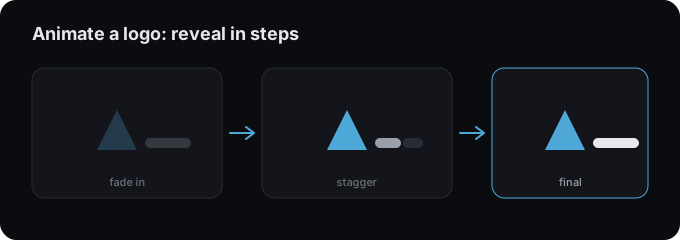
1. Bring in your logo
Paste or import the SVG of your logo from any design tool, or draw it with the shape and pen tools. Keep each element you want to animate as its own layer.
2. Choose a reveal
Pick an entrance that fits the brand:
- Pop In / Drop In: friendly, energetic marks.
- Draw On (write-on), perfect for line-based logos and monograms; see the signature write-on guide.
- Fade + Scale: calm, premium feel.
Apply it from the Animation section, animating with presets covers the slots.
3. Stagger the parts
If your logo has an icon + wordmark, select both, open the Animate menu, and add a small stagger so the icon leads and the text follows. It reads as intentional, not busy.
4. Add a subtle loop (optional)
A gentle Float or Breathe loop keeps the logo alive without distracting. Keep the amplitude small.
5. Export
Export a .lottie for production, or .json for maximum
compatibility, then drop it into your site or app via the
integration guides.
Tips
- Less is more, one strong reveal beats five competing effects.
- Match timing to brand: snappy for playful, slow for premium.
- Mind the loop: if it loops, make the end state return to the start.
Try it in the studio
No account, nothing to install. It runs in your browser.