
How to design micro-interactions with Lottie
Build button, toggle, and feedback micro-interactions as Lottie animations. Small, responsive motion that makes a UI feel alive.
- #micro-interactions
- #ui
- #use-case
- #buttons
Micro-interactions are the tiny moments of feedback: a button press, a like, a toggle, a success check. Lottie is ideal: small files, crisp motion, and play-on-demand control. Here’s how in Lottie Max.
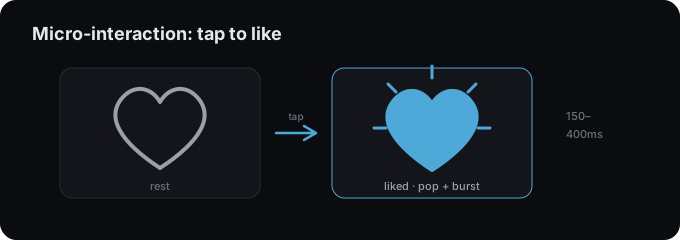
What makes a good micro-interaction
- Fast. 150-400ms. Anything slower feels laggy.
- Purposeful. It confirms an action, don’t animate for decoration.
- Snappy easing. Ease-out for responses; a touch of spring for delight.
1. Build the states
Design the start and end of the moment. E.g. an outline heart and a filled heart, or a button at rest and pressed. Keep them as layers you can keyframe between.
2. Animate the transition
Set keyframes for the change (scale, fill color, position), or use Pop/Tada emphasis presets from the presets guide. Add a subtle overshoot with spring physics so it feels physical.
3. Play it on the event
Micro-interactions usually play on click/hover, not on loop. Export the
animation, then trigger it from code with the player’s play() / segment APIs,
see the integration guides (e.g. React).
For a like button, play forward on like and reverse on un-like.
4. Export
Export .lottie or .json and keep it lean, these play
constantly, so small is essential (performance tips).
Examples to try
- Like / favorite burst on tap.
- Checkbox / toggle with a satisfying check draw-on.
- Button success state with a brief check + scale.
- Pull-to-refresh indicator.
Try it in the studio
No account, nothing to install. It runs in your browser.