
How to create animated icons with Lottie
Turn static icons into delightful animated Lottie icons: import the SVG, animate strokes and shapes, and export tiny files for web and app.
- #icons
- #animation
- #use-case
- #ui
Animated icons add polish to menus, toggles, and empty states, and as Lottie they stay razor-sharp and tiny. Here’s the workflow in Lottie Max.
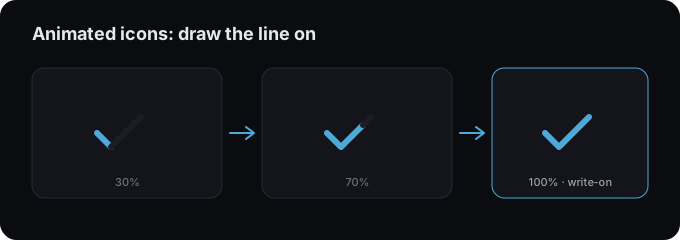
1. Import the icon
Paste the SVG of your icon from any tool, or draw it with the pen and shape tools. Icons are usually stroke-based, so keep strokes editable.
2. Pick an animation that matches the meaning
- Draw-on (write-on) for line icons that build themselves, see the write-on guide.
- Pop / scale for a satisfying tap response.
- Morph between states (e.g. menu → close) using two keyframed paths.
Presets live in the Animation section; for fine control use keyframes and easing.
3. Design for the trigger
Decide how it plays:
- Autoplay loop for ambient icons (e.g. a pulsing notification bell).
- Play on hover/click in code: most players expose play(), pause(), and segment controls.
4. Keep it consistent
Use the same duration and easing across an icon set so they feel like a family.
5. Export
Export .lottie or .json and wire it up with an
integration guide, e.g. React or
Vue. For interactive icons, control playback via the
player’s API with a ref.
Tips
- Round caps and joins keep line icons smooth.
- Short durations (200-500ms) feel responsive.
- One idea per icon, readability beats spectacle at small sizes.
Try it in the studio
No account, nothing to install. It runs in your browser.