
Integration · No-code
How to add Lottie to Webflow
Webflow has a native Lottie element, so this is fully no-code: export a .json, drag the element in, and upload.
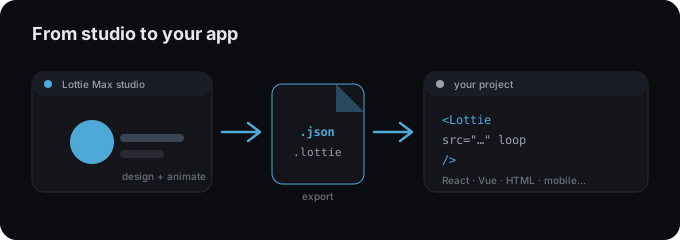
Add the animation
- 1 In Lottie Max, export Download Lottie .json.
- 2 In the Webflow Designer, open Add (+) and drag in the Lottie element.
- 3 Upload your .json in the element settings.
- 4 Set trigger (autoplay/scroll/hover), loop, and playback speed in the settings panel.
Tips
- → Keep the file small (plain .json) for fast page loads.
- → Use Webflow Interactions to drive scroll- or hover-triggered playback.
- → No native element? Add a Custom Code embed with the lottie-player snippet instead.
Need an animation first?
Design and export one in the studio. Free, in your browser.
FAQ
- Is Lottie Max free to use with Webflow?
- Yes. Lottie Max is free and runs in your browser. Make the animation, export it, and drop it into your project.
- What file should I export for Webflow?
- A Lottie .json works everywhere. For a smaller file, export .lottie (dotLottie, ~3× smaller) where the player supports it.
- Where do I get the animation file?
- Create it in the Lottie Max studio, then use Export to download .json / .lottie or copy a ready-to-paste embed snippet.